Debugger Launchers: GDB
Integration with GDB is achieved using a Python-based plugin for GDB. It is well-suited for debuging Linux user-space targets, many embedded systems, and sometimes Windows user-space targets. Please note you may need to obtain a properly-configured build of GDB for your target. If you are working with an embedded system, it is probably safest to install the "multiarch" build of GDB from your package manager.
The following launchers based on GDB (GNU Debugger) are included out of the box:
Local
The plain "gdb" launch script defaults to launching the current program as a
user-mode process on the local system. If there is no current program, or if you clear the
Image option, this launcher will only start gdb and get it connected to a
Ghidra trace. You may then manually start or connect to your target. Note that this may also
require manual mapping of your program database(s) to the target memory.
Setup
You must have GDB installed on the local system, and it must embed the Python 3 interpreter. If you have access to PyPI, setting up your Python 3 environment is done using Pip. Please note the version specifier for Protobuf.
-
If you are offline, or would like to use our provided packages, we still use Pip, but with a more complicated invocation:
-
cd /path/to/ghidra_
version/Ghidra/Debug
python3 -m pip install --no-index -f Debugger-rmi-trace/pypkg/dist -f Debugger-agent-gdb/pypkg/dist protobuf
Beware that GDB may embed a different Python interpreter than your system's default. If you are still getting import errors, check the version that GDB embeds:
-
Note the version and ensure that you are invoking Pip with that version. Supposing
sys.version indicates 3.10, you should invoke Pip using python3.10 -m pip.
Warning: Modern Linux distributions are beginning to adopt PEP 668, which prevents
installation of Python packages outside of a virtual environment (venv) even for non-root user accounts. Unfortunately, gdb does not seem to honor the currently activated
venv, and so such configurations are not officially supported. You may be able to work around
this by modifying the PYTHONPATH lines of the launcher script, but your mileage may
vary. For now, we recommend using the --break-system-packages argument with Pip.
Options
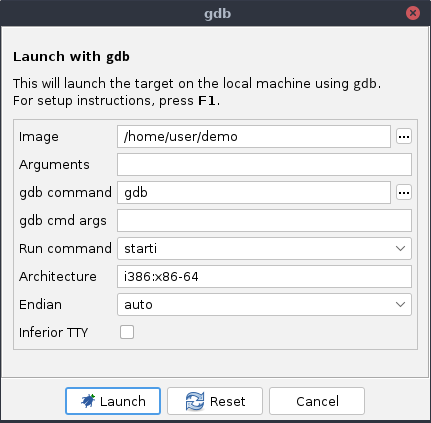
- Image: This is the path to the target binary image (ELF). Ghidra will try to fill this in based on information gathered when the current program was imported. If the file exists and is executable on the local machine, it will be filled in automatically. Otherwise, it is up to you to locate it. NOTE: If you have patched the current program database, these changes are not applied to the target. You can either 1) apply the same patches to the target once it is running, or 2) export a patched copy of your image and direct this launcher to run it.
- Arguments: These are the command-line arguments to pass into the target process.
These are passed as is to GDB's "
set args ..." command. gdbcommand: This is the command or path to GDB. We recommend version 13 or later. We require version 8 or later.gdbcmd args: Arguments passed directly to GDB (versus the target). Note: these arguments may override user arguments passed to the cmd.- Run command: This is the GDB command to actually launch the target. In most cases
this should be "
starti," since this will assure you an initial break and a chance to enable your breakpoints. - Inferior TTY: Depending on your target and/or personal preference, you may opt to
separate the debugger's and the target's I/O. If you check this box, the launcher will use
GDB's "
set inferior-tty ..." command to direct the target's I/O to a second Terminal window.
Once running, you are presented with GDB's command-line interface in Ghidra's Terminal. This
is the bona fide GDB command-line interface, so it has all the functionality you would
expect. If you command GDB from this shell, the plugin will keep Ghidra in sync. The terminal
can also be used to interact with the target application when it is running. The plugin
provides an additional set of commands for managing the connection to Ghidra, as well as
controlling trace synchronization. These are all in the "ghidra" command prefix. You
can use tab completion to enumerate the available commands and GDB's "help" command to
examine their documentation.
Via SSH
This works the same as the GDB launcher, but runs gdb on a remote system via
ssh. In contrast to the previous system, which used an SSH library for Java, this
launcher uses the ssh command on the local system. Thus, it should have broader
compatibility with remote systems, and it should use the same configuration files as you are
accustomed to. That said, we developed it using OpenSSH, so your experience will be best if
your copy understands the same command-line arguments.
Setup
You must install GDB and an SSH server onto the target host. Your local SSH client must
support remote port forwarding (-R option) and terminal allocation (-t option), and
the remote server must be configured to permit them.
You will need to manually install the required Python packages on the target host,
comprising our plugin for GDB and its dependencies. Copy all of the Python packages from
Ghidra/Debug/Debugger-rmi-trace/pypkg/dist/ and
Ghidra/Debug/Debugger-agent-gdb/pypkg/dist/ to the remote system. It is easiest to put
them all in one directory, e.g., ~/ghidra-pypkg/. Then install them:
-
Please see Setup for notes about embedded Python interpreter versions.
Options
- Image: This is the path to the target binary image (ELF) on the remote system. Ghidra will try to fill this in based on information gathered when the current program was imported; however, it cannot examine the remote system. If the file exists and is executable on the local machine, it will be filled in automatically. Whether or not it is filled automatically, please ensure the location is correct with respect to the remote system. NOTE: If you have patched the current program database, these changes are not applied to the target. You can either 1) apply the same patches to the target once it is running, or 2) export a patched copy of your image, copy it to the target system, and direct this launcher to run it.
- Arguments: This works the same as in GDB.
- [User@]Host: This is the host name of the target system, optionally including a
user name. This is passed as is to
ssh, which may interpret it according to local configuration. - Remote Trace RMI Port: An available TCP port on the target system, which will listen for GDB's Trace RMI connection and forward it back to Ghidra.
- Extra
ssharguments: These are extra arguments to pass tossh. They are inserted immediately after thesshcommand but before the host name. Beware that syntax errors may cause strange behavior, and that not all features may be compatible with this launcher. gdbcommand: This works the same as in GDB, but with respect to the remote file system.- Run command: This works the same as in GDB.
- Note there is no option to create a second Terminal (TTY) for the target.
Via SSH (to Windows cmd shell)
Essentially identical to ssh from the standpoint of usage and options, this launcher
runs gdb on a remote Windows system via ssh. The behavior of ssh
on Windows, however, requires a slightly different mechanism. The command options are used to
rewrite the gdbinit_template in the support directory. The result is copied to
.gdbinit in the user's home directory on the remote machine. Because two commands are
executed, the user may be asked to authenticate twice depending on their ssh configuration.
Once the .gdbinit file is in place, the user may wish to modify the launchers, or connect
without the launcher by setting the RMI port by hand and running gdb on the remote box.
gdbserver via SSH
This works similarly to the GDB via SSH launcher, but instead of tunneling the Trace RMI
connection, tunnels the RSP (gdbserver) connection. There is actually a fairly elegant
method of doing this straight from within gdb, which is exactly what this launcher
does:
-
This has some advantages compared to running gdb on the remote target:
- GDB may not be available on the remote target.
- There is no need to install our plugin for GDB on the target.
But, it also has some drawbacks:
gdbservermust be installed on the remote system, and the localgdbmust be compatible with it.- It may be slightly more annoying to map modules from the remote system, because of the way GDB reports these modules.
- The memory map may be absent. Though this is overcome by creating an entry for the entire address space, if the map is of interest to your analysis, it may not be available.
Setup
You must have GDB installed on the local system and a compatible version of
gdbserver installed on the target system. You must have an SSH server installed on the
target system. It may be worth testing your setup manually (outside of Ghidra) to ensure
everything is configured correctly. On the local system, follow the steps given in Setup. There are no additional Python requirements on the target system.
Options
- Image: This works the same as in GDB via SSH.
- Arguments: This works the same as in GDB.
- [User@]Host: This works the same as in GDB via SSH.
- Remote Trace RMI Port: An available TCP port on the target system, which will listen for GDB's Trace RMI connection and forward it back to Ghidra.
- Extra
ssharguments: This works the same as in GDB via SSH. gdbservercommand: This is the command or path togdbserverwith respect to the remote file system.- Extra
gdbserverarguments: These are extra arguments to pass togdbserver. They are inserted immediately aftergdbserverbut before the dash. Beware that syntax errors may cause strange behavior, and that not all features may be compatible with this launcher. gdbcommand: This works the same as in GDB, with respect to the local file system.- Note there is no option to create a second Terminal (TTY) for the target.
QEMU
These launchers orchestrate a QEMU user- or system-mode target and connect to it using our Python plugin for GDB. Ghidra will inspect the current program and attempt to map its language to the appropriate QEMU command, but due to subtle errors and/or outright failure, the default value for the QEMU command option often requires careful inspection.
There are two separate scripts for QEMU, one for user mode and one for system mode. Note that QEMU does not support user-mode emulation on Windows, so that script is not available on Windows hosts.
Setup
You must acquire versions of QEMU and GDB that support the target architecture. Aside from
the copy of QEMU required, setup is the same whether for user or system mode. As for GDB, on
many distributions of Linux, you can install gdb-multiarch. Follow the steps given in
Setup.
Options
- Image: This is the path to the target binary image (ELF). This works the same as
in GDB, but is passed to QEMU. This will also provide the name to GDB using its "
file ..." command. - Arguments (User-mode only): These are the command-line arguments to pass into the target process. These are passed as is on QEMU's command line.
- QEMU command: The command or path to QEMU.
- QEMU Port: An available TCP port for QEMU to listen on for GDB.
- Extra
qemuarguments: Extra arguments to pass toqemuorqemu-system. These are inserted immediately after theqemucommand but before the target image. Runqemu[-system]-arch --helpto see the options supported. Beware that syntax errors may cause strange behavior, and that not all QEMU features may be compatible with Ghidra. gdbcommand: This works the same as in GDB, but defaults to "gdb-multiarch."- QEMU TTY: This works similarly as in GDB, but just runs QEMU in the second Terminal window.
- Pull all section mappings: For some targets the memory mappings cannot be correctly conveyed to Ghidra module by module. This setting forces GDB to send the section mappings to Ghidra. Warning: This operation is expensive for large targets, so it should only be enabled if required (e.g. unable to correctly place breakpoints). Auto-Map by Section is required when this option is enabled, or else address translation may still be incorrect.
Wine
This launchers runs wine in a gdb session on Linux and directs it to a
target Windows executable. There are other ways to rig a Windows target in GDB on Linux, but
this is the method we have chosen. This may prevent GDB from processing the object file,
because it is a PE file, and most copies of GDB for UNIX will support only ELF. Nevertheless,
Ghidra should recognize the target and map it, giving you symbols and debug info in the front
end, even if not in the GDB CLI.
Setup
In addition to the steps given in Setup, you must install Wine on your
system. Prepare for configuration by locating the actual wine executable. These are
often in some library directory and named "wine32" or "wine64." To find them,
either examine the file list of the installed package, or dissect the wrapper wine
script, usually on your path:
-
The locations are usually given in variables at the top of the script, e.g.,
"/usr/lib/wine/wine64". One is for 64-bit Windows targets and another is for 32-bit
Windows targets. Unlike native Windows, Wine does not (yet) implement WoW64 (Windows on Windows
64). Instead, the 32-bit target is loaded using a 32-bit copy of Wine, and so is serviced by
Linux's 32-bit system calls. NOTE: Careful attention must be given to
select the correct wine executable for the target program's architecture! Even
though the wine executable is smart enough to correct this mistake, it results in
calls to exec, which confuse this launcher. If GDB complains that it cannot place
breakpoints because of memory access, it is probably because of this mistake.
The launcher loads some additional support packages in our plugin for GDB, e.g., to scan the memory map for PE files and amend the module list. Thus, Ghidra can display both Windows and Linux modules, and map them to its program databases accordingly, despite GDB's inability to process PE files. There are perhaps other configurations of GDB for Linux that can process ELFs as well as PEs loaded by Wine, but they do not seem to be readily available in any popular package repositories.
Options
- Image: This is the path to the target binary image (EXE). This works the same as
in GDB, but is passed to Wine via GDB's "
set args ...". This will also provide the name to GDB using its "file ..." command. - Arguments: These are the command-line arguments to pass into the target process.
These are included in "
set args ...". - Path to
winebinary: The path to wine for your target architecture. See note above! gdbcommand: This works the same as in GDB.- Inferior TTY: This works the same as in GDB.
Remote
This launcher can target any TCP-based GDB stub that is compatible with a local copy of
gdb. Essentially, it just starts gdb and then enters
-
into it. It is best to test this command outside of Ghidra to be sure everything is compatible before using this launcher. This launcher does not require an image, nor does it create your target. Thus, it can be used without a current program.
Setup
On your local system, follow the steps given in Setup. Your version of
GDB must be compatible with the stub (e.g., gdbserver) on the target system. There are
no additional requirements on the target system.
NOTE: The target program image must match that imported in Ghidra, or else things may not map or synchronize correctly.
Options
- Target: The type of target. Either
remoteorremote-extended, depending on the capabilities of the stub. - Host: The host name of the target stub.
- Port: The TCP port of the target stub.
- Architecture (optional): If the stub does not describe its architecture to GDB,
you must set it before connecting. This is passed as is to "
set arch ..." immediately before the "target ..." command. Enter "set arch" into a GDB session outside of Ghidra to see the list of available options in your configuration. You may want to usegdb-multiarch. gdbcommand: This works the same as in GDB, though you may want to usegdb-multiarch.
rr
This launcher runs rr in a gdb session on Linux for replaying rr-generated
traces.
Options
- Trace Dir: This is the path to the trace directory, stored by default in the
user's home directory in
.local/share/rr/target_name. rrcommand: This is the command or path torr.
Other options are the same as in GDB.
← Previous: Via SSH (to Windows cmd shell) | Next: Java Debugger Integration →