Home > FrontEndPlugin > Archive Current Project
Archive Current Project
Archive Current Project will save the entire contents of the currently open project to a file name that you specify.
The archive is a snapshot of the project data at the time of the archival. You must close all running tools before you can begin the archive process.
After the archive is complete, the Ghidra Project Window's message area will indicate whether the archive succeeded or failed. The archive can be restored by using the Restore Project operation.
Why Archive a Project?
- Archiving a project saves it to a file in a format that is compatible between different Ghidra release versions. It also saves off the project data in a way that it can easily be restored at a later date.
- Archiving the project does not remove the project from the Ghidra projects directory. So archiving the project has no impact on further use of the project.
- Archiving periodically to a uniquely named file can simply be used as a way to backup the current state of the project data. The archive file(s) can then be copied to another disk drive or computer system for redundancy.
To archive the current project:
- Close any tools that are running. (You cannot archive a project that has running tools.)
- From the Ghidra Project Window, select File → Archive Current Project...
- From the Archive Current Project dialog, specify the Archive File where the project is to be saved. The default location of the archive file is your projects directory.

Note: The file name must end with a '.gar' extension.
- Click the OK button to begin archiving.
- If the specified archive already exists the Archive File Exists dialog is displayed.
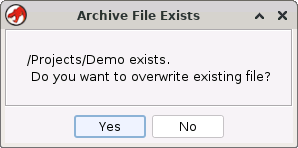
Decide whether you want to overwrite the existing archive file. Select Yes if you want to overwrite the file. Otherwise, select No and enter another filename in the Archive Current Project dialog.
- Your project is saved automatically before the archive process begins.
- The 'In Progress' dialog is displayed indicating the project is being archived. You can cancel the archive process at any time by clicking on the Cancel button in the progress dialog.
When Archiving Errors Occur
If the archive process encounters an error, archiving will terminate and a message will appear. Also, the failure is indicated in the Ghidra Project Window's message area.
Provided by: Project Archiver Plugin
Related Topics: