Home > VersionTrackingPlugin > Functions Table
Version Tracking Functions Table
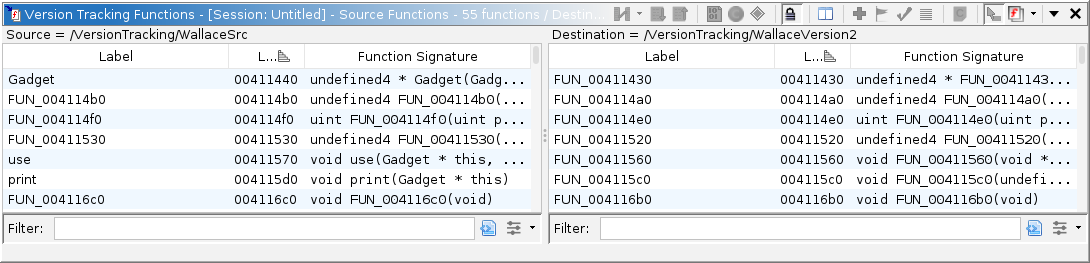
The functions table shows a list of all functions in the source program and the destination program. You can filter this table to show only those functions that are not part of a match. This is useful if you would like to create a manual match from two functions.
If you select function in each table and there exists already a match between the two functions, then the following status message will be displayed in the table: A match already exists between <source function name> and <destination function name>.
The title of this window will show, for each program, the number of total functions, as well as the number of functions filtered-out of the table, if any filters are applied.
Functions Table Columns
| Column Name | Description |
|---|---|
| Label | This column shows the label for function in the given row. |
| Location | This column shows the address for the function in the given row. |
| Function Signature | This column shows the function signature for the function in the given row. |
Functions Table Actions
Create Manual Match
The Create Manual Match action (
Create And Accept Manual Match
The Create And Accept Manual Match action ( ) allows the user to create a match for the
selected function in source table to the selected function in the destination table and then automatically accept it.
The action will be disabled if you do not have a single function selected in both
tables.
) allows the user to create a match for the
selected function in source table to the selected function in the destination table and then automatically accept it.
The action will be disabled if you do not have a single function selected in both
tables.
Create And Apply Manual Match
The Create And Apply Manual Match action ( ) allows the user to create a match for the
selected function in source table to the selected function in the destination table and then accept it and then automatically apply
any appropriate markup items from the source to the destination program.
The action will be disabled if you do not have a single function selected in both
tables.
) allows the user to create a match for the
selected function in source table to the selected function in the destination table and then accept it and then automatically apply
any appropriate markup items from the source to the destination program.
The action will be disabled if you do not have a single function selected in both
tables.
Select Existing Match
The
Select Existing Match action ( ) will
select the existing match in the matches table. To use this action you must have
one function selected in source table and one function selected in the destination
table. Further, the action will only be enabled if a match exists for the two
selected functions.
) will
select the existing match in the matches table. To use this action you must have
one function selected in source table and one function selected in the destination
table. Further, the action will only be enabled if a match exists for the two
selected functions.
Functions Table Filter
The Functions Filter action filters functions from the tables
based upon the chosen state of the action. You can change the state of the
filter from the actions toolbar using the drop-down menu.
( ).
).
This list below shows the available filter states:
-
Show All Functions (
 ) -
Shows all functions found in the source and destination programs.
) -
Shows all functions found in the source and destination programs. -
Show Only Unmatched Functions (
 ) -
Shows only functions in the source and destination programs that are
not part of any match. This is
useful for showing functions that were not matched by any of the
program correlators.
) -
Shows only functions in the source and destination programs that are
not part of any match. This is
useful for showing functions that were not matched by any of the
program correlators. - Show Only Unaccepted Match Functions ([Accepted]) - Shows only functions in the source and destination programs that are not part of an accepted match. This means that the functions visible in the tables will either be part of no match or part of a match that has not been accepted. This is useful for showing functions that you have not yet accepted as being part of a valid match.
Show/Hide the Function Comparison Panel
The
Toggle Visibility of Dual Comparison Views action
( ) will
toggle whether or not a function comparison panel is displayed below the source
and destination function tables. As you select a function in the source or destination
table, it is displayed in the function comparison panel so you can visually compare
the source and destination functions.
) will
toggle whether or not a function comparison panel is displayed below the source
and destination function tables. As you select a function in the source or destination
table, it is displayed in the function comparison panel so you can visually compare
the source and destination functions.
There are other toolbar and popup actions that are available for this function comparison panel. See the help for the Function Comparison Window to learn more about using these.
Text Filter
Each table has a text field at that bottom labeled Search Filter that allows you to search for text in the respective table. If the text searched is contained in any column, then that column will remain in the table; otherwise the row will be filtered out.
Provided by: Version Tracking Plugin
Related Topics:
- Version Tracking Matches Table
- Version Tracking Tool
- Version Tracking Introduction
- Function Comparison Window
← Previous: Markup Items Table | Next: Related Matches Table →