Home > CodeBrowserPlugin > Browser Field Formatter
Browser Field Formatter
The Browser Field Formatter is used to control how the fields in a listing are
displayed by the Listing. The format specifies which fields are displayed, the order of fields,
and the width of each field. The formatter is not normally displayed by default, but can be
accessed at anytime by clicking on the
 icon located in the Listing's toolbar. When the formatter is
visible, the button becomes depressed, and can be clicked to hide the formatter.
icon located in the Listing's toolbar. When the formatter is
visible, the button becomes depressed, and can be clicked to hide the formatter.
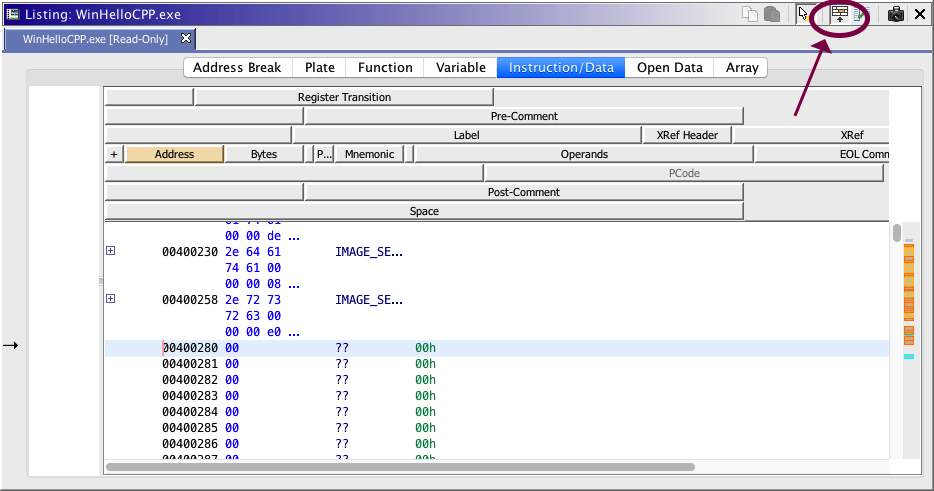
The listing displays information at each address of a program. This information is broken down into the following categories:
| Address Break | Separates non-consecutive addresses |
|---|---|
| Plate | Displays plate comments. Other comment types are included in the Instruction/Data element. |
| Function | Displays function signatures and function related attributes. |
| Variable | Displays information for the return, parameters and local variables associated with a function. |
| Instruction/Data | Displays information about instructions or data. |
| Open Data | Displays internals of a structure or array. |
Each address has one or more of the above categories of information. Each category has a display format which can be configured. The format consists of multiple lines, each with some number of field controllers. A field controller manages the display of the corresponding field of information in the program. The listing displays fields in the same relative order, size and positioning as determined by the field controller. It is important to understand that the formats, regardless of how they appear, represent the layout of information for a single address.
Whenever the cursor is moved, the Browser Field Formatter automatically switches to the tab associated with the current cursor location. In addition, the field controller for the current cursor location is highlighted.
Configuring the Format
Adding Fields
New fields can be added to the format by right-clicking on the Browser Field Formatter component and selecting Add Field → <name of field> from the popup menu. The new field will be inserted at the right-click point. Only the fields that have already been added to the format show up in the popup menu. If more than one field appears in the popup, an additional menu item, Add Field → All, is available.
The Spacer Field
A spacer field is used to take up space in the listing. Optionally, spacer fields can display some text (See Set Text). To add a spacer field, right click where a space is desired and select the Add Field → Spacer option from the popup menu. After adding the spacer field, adjust its size to take up more or less space.
Set Text
Spacer fields can optionally have an associated text value. Each spacer's text will be displayed at corresponding locations in the listing. To set text on a spacer field, right click on the field and choose the Set Text option from the popup menu. Entering empty text into the Set Text dialog box will remove any text from the field thus returning the field to a blank spacer.
Removing Fields
Fields can be removed by right clicking on them and selecting Remove Field from the popup menu. All Fields can be removed by right clicking on the header and selecting the Remove All Fields option from the popup menu.
Moving Fields
Fields can be moved by dragging and dropping the corresponding field controller in the Browser Field Formatter. Field controllers can be dropped onto any line in the formatter. Since fields cannot overlap, dropping a field controller onto another field controller will cause the dropped field to appear either entirely before or directly after the other field, depending on which is closer to the drop point.
Once a field controller has been moved, the remaining field controllers always move as far to the left as possible to fill up any empty space. So if a field is moved off of a row, all the fields to its right, move left to fill in the empty space. If a field is dropped before another field, that field and all the fields to its right are moved to the right to make room for the new field. Spacer fields can be inserted before a field to move it further to the right.
Disabling Fields
Fields can be disabled by right clicking on them and selecting Disable Field from the popup menu. Disabled fields still take up space in the overall layout, but they don't display any information in the listing.
Enable Field
Disabled fields can be enabled by right clicking on them and selecting Enable Field from the popup menu. The field will then display information in the listing.
Insert Row
A new row for placing fields can be inserted by right clicking and selecting Insert Row from the popup menu. A new empty row will then be inserted at point where the mouse was clicked. Empty rows do not affect the listing because any rows (even rows that have fields) that don't have displayable information are suppressed from the listing.
Remove Row
Empty rows can be deleted by right clicking on the row and selecting the Remove Row option from the popup menu. The Remove Row option is not available if the row is not empty.
Reset Format
Reset the format of the currently displayed category to the default settings by right clicking on the Browser Field Formatter and select Reset Format on the popup.
Reset All Formats
Reset the formats for all categories to their default settings by right clicking on the Browser Field Formatter and select Reset All Formats on the popup.
Quick Toggle Actions
Some fields have quick toggle actions that allow the field to be easily toggled on or
off. Currently, the only field with a quick toggle action is the PCode field and it has a
default keybinding is <CTRL SHIFT 1>.
Custom Formats
A structure is normally displayed using the Instruction/Data category format. However, it is possible to create a custom format to display the structure. This custom format allow you to include members of the structure in its display.
Create Custom Format
To create a custom format, right click on the formatter when the cursor is over a structure and choose the Create Custom Format option. A new format will be created with the same format as the Instruction/Data format. In addition to all the standard fields, a displayable field is created for each member and is available in the Add Field submenu.
Delete Custom Format
To delete a custom format, select its tab, right click in the Browser Field Formatter and select the Delete Custom Format option. The format will revert to the general instruction format.
Save Custom Format
Newly created Custom Formats are temporary and must be saved to the program in order to be reused the next time the program is opened. To save a custom format, select its tab, right click in the Browser Field Formatter and select the Save Custom Format option.
The program must be saved after saving a custom format.
Available Fields
The table below shows a listing of all fields along with a brief description of the type of information they display. The category from which the field can be accessed is also provided. In some instances a field can be accessed from more than one category.
| Field Name | Category | Description |
|---|---|---|
| Address | Instruction/Data; Open Data | Displays addresses in the program |
| Bytes | Instruction/Data; Open Data | Displays the bytes that make up an instruction or data |
| EOL Comment | Instruction/Data; Open Data | Displays the end of line comment |
| Field Name | Open Data | Displays the name of the data fields in a structure |
| Function Call-Fixup | Function | Displays the name of the Call-Fixup associated with the function. |
| Function Purge | Function | Displays the number of bytes purged from the stack for a function |
| Function Repeatable Comment | Function | Displays the function's comment that will appear at all calls to that function |
| Function Signature | Function | Displays the full function prototype, including calling convention, function name, return data type and parameters. In addition the presence of the following function attributes will be indicated: inline, no-return, and thunk. If the function has varargs, the last parameter position will include "...". |
| Function Tags | Function | Displays all tags associated with this function |
| Label | Instruction/Data; Open Data | Displays all labels for an address |
| Memory Block Start | Plate | Displays information about the memory block |
| Mnemonic | Instruction/Data; Open Data | Displays the name of the instruction or data |
| Operands | Instruction/Data; Open Data | Displays the input to the instruction or the data value |
| Parallel || | Instruction/Data | Displays a parallel indicator (e.g., || ) to indicate that the current instruction executes in parallel with the previous instruction. |
| Plate Comment | Plate | Displays the block header comment |
| PCode | Instruction/Data; Open Data | Displays the micro-code for an instruction |
| Post-Comment | Instruction/Data; Open Data | Displays the comment following an instruction or data |
| Pre-Comment | Instruction/Data; Open Data | Displays the comment preceding an instruction or data |
| Register | Function | Displays the values of registers at the entry point of a function |
| Register Transition | Instruction/Data | Displays the values of registers at the points where the value transitions to a new value. |
| Separator | Address Break | Displays a "......." when there is a gap between addresses |
| Signature Source | Function | Indicates the source-type associated with the function signature (i.e., DEFAULT, AI_ASSIST, ANALYSIS, IMPORTED, USER_DEFINED). |
| Space | Instruction/Data | Displays one or more blank lines as established by a plugin |
| Spacer | All | Used to separate other fields. Can optionally display static text |
| Stack Depth | Instruction/Data | Indicates the current stack-pointer offset relative to its state at the start of the associated function. The field is only displayed for instructions contained within a function. A bogus value indicates that the calculation failed to determine the stack depth (i.e., -7fffffff or 7fffffff). |
| Thunked-Function | Function | Shows the name of the thunked-function to for those functions designated as a "thunk" function (see Function Signature field). |
| Variable Comment | Variable | Displays the comment for a variable |
| Variable Name | Variable | Display the name of a variable |
| Variable Location | Variable | Displays the storage location associated with a the variable (e.g., register, stack, memory, unique-hash, etc.) |
| Variable Type | Variable | Displays the data type for variable |
| Variable XRef | Variable | Displays a list of addresses whose instructions reference a variable |
| Variable XRef Header | Variable | Displays the number of references and offcut references to a variable |
| XREF | Instruction/Data; Open Data | Displays a list of addresses whose instruction refers to this address. |
| XREF Header | Instruction/Data; Open Data | Displays the number of references and offcut references to this address. |
| + | Instruction/Data; Open Data | Opens and Closes structures and arrays. |
Provided by: Code Browser plugin
Related Topics: