Home > GraphServices > Default Graph Display
Default Graph Display
The visualization display will show the graph in a new window or in a new tab of a previously created graph window.
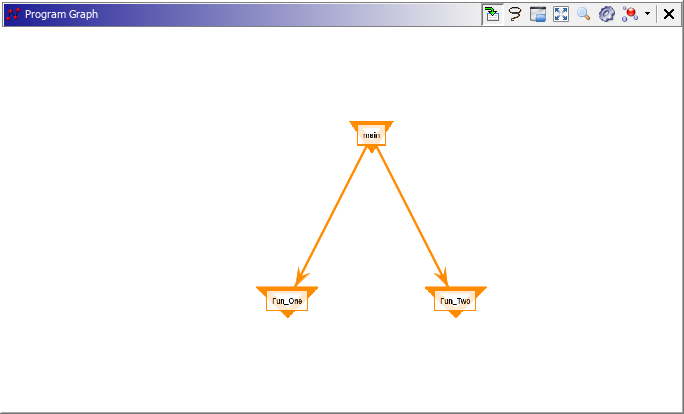
Manipulating the Graph
- Dragging in the graph or on any unselected vertices will pan the graph (translate the display in the x and y axis)
- Dragging a selected vertex will reposition all selected vertices
- Using the
Mouse Wheelwill zoom the graph in and out Control+Mouse Wheelwill zoom the graph in and out on the X-Axis onlyALT+Mouse Wheelwill zoom the graph in and out in the Y-Axis onlyCtrl+Clickwill select a vertexCtrl+Clickover an unselected vertex will add that vertex to the selectionCtrl+Clickover a previously selected vertex will remove that vertex from the selectionCtrl+dragon an empty area will create a rectangular area and select enclosed vertices
Toolbar Buttons
The  toggle button, when 'set' will cause a focused
vertex (the vertex with the red arrow) to be moved to the center of the view
toggle button, when 'set' will cause a focused
vertex (the vertex with the red arrow) to be moved to the center of the view
The  toggle button, when 'set' will
allow the user to draw a free-form shape that encloses the vertices they wish to select.
toggle button, when 'set' will
allow the user to draw a free-form shape that encloses the vertices they wish to select.
The  toggle button,
when 'set' will open a satellite mini view of the graph in the lower right corner. The
mini-view can be manipulated with the mouse to affect the main view
toggle button,
when 'set' will open a satellite mini view of the graph in the lower right corner. The
mini-view can be manipulated with the mouse to affect the main view
The  button will reset any visual transformations on the
graph and center it at a best-effort size
button will reset any visual transformations on the
graph and center it at a best-effort size
The  toggle button, when 'set' will open a rectangular
magnification lens in the graph view
toggle button, when 'set' will open a rectangular
magnification lens in the graph view
- MouseButton1 click-drag on the lens center circle to move the magnifier lens
- MouseButton1 click-draw on a lens edge diamond to resize the magnifier lens
- MouseButton1 click on the upper-right circle-cross to dispose of the magnifier lens
- MouseWheel will change the magnification of the lens
The  button will open a Filter dialog. Select
buttons in the dialog to hide specific vertices or edges in the display. The Filter dialog
buttons are created by examining the graph vertex/edge properties to discover candidates for
filtering.
button will open a Filter dialog. Select
buttons in the dialog to hide specific vertices or edges in the display. The Filter dialog
buttons are created by examining the graph vertex/edge properties to discover candidates for
filtering.
The  Arrangement menu is used to
select one of several graph layout algorithms.
Arrangement menu is used to
select one of several graph layout algorithms.
- Compact Hierarchical is the TidierTree Layout Algorithm. It builds a tree structure and attempts to reduce horizontal space.
- Hierarchical is a basic Tree algorithm with the root(s) at the top.
- Compact Radial is the TidierTree Layout Algorithm with the root(s) at the center and child vertices radiating outwards.
- Hierarchical MinCross is the Sugiyama Layout Algorithm with optimizations. It attempts to route edges around vertices in order to reduce crossing. There are four layering algorithms (below)
- Vertical Hierarchical MinCross is the Sugiyama Layout Algorithm with optimizations. It attempts to route edges around vertices in order to reduce crossing. If there is a favored EdgeType, an attempt is made to line up those favored edges so they are vertical in the presentation. There are four layering algorithms:
- Top Down - Biases the vertices to the top. Sources on the top row.
- Longest Path - Biases the vertices to the bottom. Sinks are on the bottom row.
- Network Simplex - Layers after finding an 'optimal tree' by not considering longer edges.
- Coffman Graham - Biases the vertices using a scheduling algorithm to minimize length. Tends to balance the graph around the middle.
- Circle will arrange vertices in a Circle.
- Force Balanced is a Force Directed Layout Algorithm using the the Kamada Kawai algorithm. It attempts to balance the graph by considering vertices and edge connections.
- Force Directed is a Force Directed Layout Algorithm using the Fructermann Reingold approach. It pushes unconnected vertices apart and draws connected vertices together.
- Radial is a Tree structure with the root(s) at the center and child vertices radiating outwards.
- Balloon is a Tree structure with the root(s) at the centers of circles in a radial pattern
- GEM (Graph Embedder) is a Force Directed layout with locally separated components
Popup Actions
Standard Popup Actions
- Hide Selected - Causes the display to not show selected vertices.
- Hide Unselected - Causes the display to not show unselected vertices.
- Invert Selection - Unselects all selected nodes and selects all unselected nodes.
- Grow Selection From Sources - Adds to the selection all vertices that have outgoing edges to the current selection.
- Grow Selection To Targets - Adds to the selection all vertices that have incoming edges from the current selection.
- Clear Selection - Clears all edge and vertex selection.
- Display Selected As New Graph - Creates a new graph and display from the currently selected vertices.
- Display Popup Windows - When toggled off no tooltip popups will be displayed.
- Collapse Selected Vertices - The selected vertices are grouped into a single vertex.
- Expand Selected Vertices - Any group vertices are reverted back to the vertices that it contains.
- Grow Selection To Entire Component - Adds to the selection all vertices that are reachable from the currently selected vertices.
Vertex Popup Actions
- Select Vertex - Selects the vertex that this action was invoked on.
- Deselect Vertex - Deselects the vertex that this action was invoked on.
Edge Popup Actions
- Go To Edge Source - Makes this edge's source vertex be the focused vertex.
- Go To Edge Target - Makes this edge's destination vertex be the focused vertex.
- Select Edge - Add this edge and its associated vertices to the selection
- Deselect Edge - Removes this edge and its associated vertices from the selection
Graph Type Display Options
Graphs have a graph type which defines vertex types and edge types. Users can configure the display properties for each vertex and edge type. These options have the following subsections:
Edge Colors
Allows setting the color for each edge type. Each Edge type will be listed with its current color.
Miscellaneous
- Default Vertex Color - color for vertices with no defined vertex type
- Default Vertex Shape - shape for vertices with no defined vertex type
- Default Edge Color - color for edges with no defined edge type
- Favored Edge - edge type to be favored by graph layout algorithms
Vertex Colors
Allows setting the color for each vertex type. Each vertex type will be listed with its current color.
Vertex Shapes
Allows setting the shape for each vertex type. Each vertex type will be listed with a combo box for picking a supported shape. Supported shapes include Ellipse, Rectangle Diamond, TriangleUp, TriangleDown, Star, Pentagon, Hexagon, and Octagon.
Provided By: GraphDisplayBrokerPlugin
Related Topics: